
Zelle® is fast and easy
Zelle® is a great way to send, request and receive money with people you know and trust. You can also use it to send money between your personal and business accounts. Involved parties must have an eligible checking or savings account.
Zelle® is easy to use
Enroll with Zelle® by linking your eligible Regions account and verifying your U.S mobile phone number and email address.1
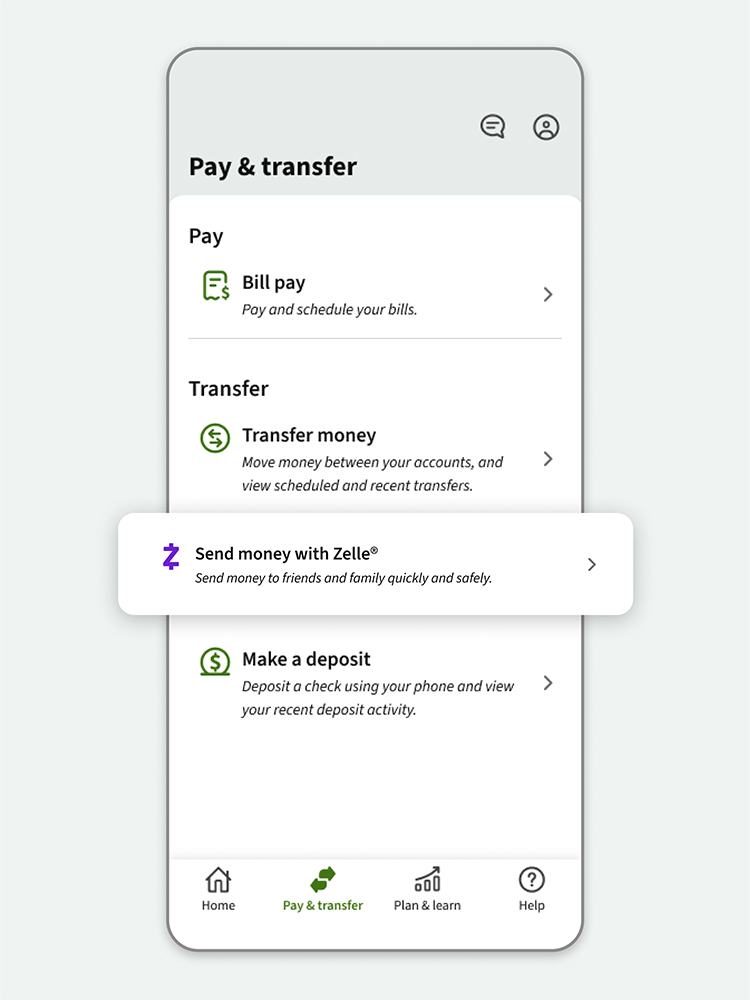
Access Zelle® in Regions Mobile app
- Select the Pay & transfer menu from the bottom navigation of the screen, then select Send money with Zelle®. Or, you can select Zelle® at the top of the page. When in an account, scroll down and select Send money with Zelle®.
- Then select your recipient, or simply enter the recipient’s U.S. mobile phone number or email address.
- Enter the amount and select your eligible funding account, then select Review.
- After review, select Send.
Access Zelle® in Regions Online Banking
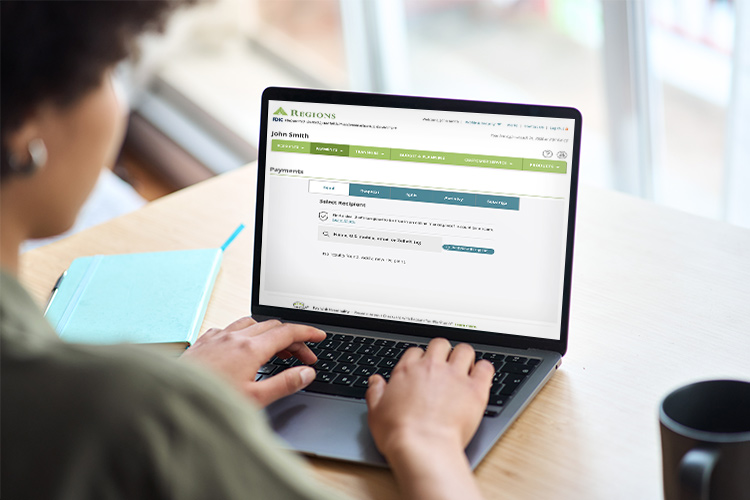
- Log in to Online Banking.
- In Payments, select Send Money with Zelle®, then Send.
- Select your recipient, or simply enter the recipient’s U.S. mobile phone number or email address.
- Enter the amount and select your eligible funding account, then select Review.
- After review, select Send.
FAQs about Zelle® QR codes and Ready Contacts
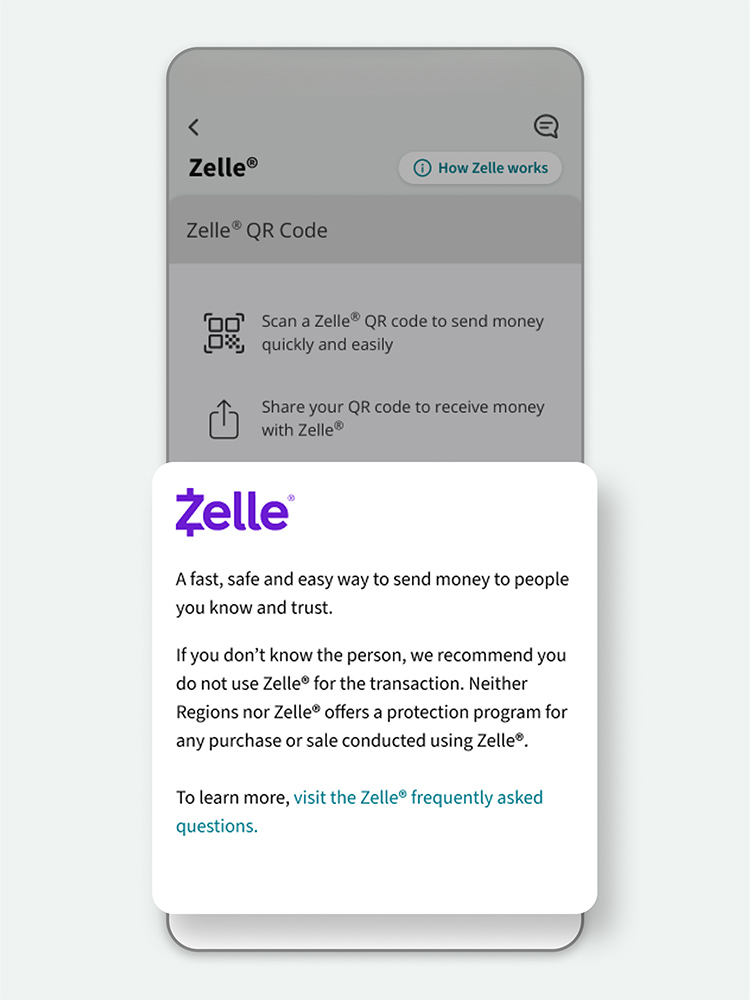
Zelle® QR codes provide peace of mind knowing you can send to and receive money from the right person, without typing an email address or mobile number.
To locate your Zelle® QR code, log into the mobile app or Regions Online Banking and click Send Money with Zelle®. Next, go to your Zelle® settings and click Zelle® QR code.
Your QR code will be displayed under My Code. From here you can view your QR code and use the print or share icons to text, email or print your Zelle® QR code.
To receive or request money, just share your Zelle® QR code.
To send money, log into the mobile app, click Send money with Zelle®, then click on the QR code icon displayed at the top of the Select Recipient screen.
Once you allow access to your camera, point your phone’s camera at the recipient’s Zelle® QR code, enter the amount you would like to send, and hit Send. The money will be on the way.
When sending money to someone new, it’s always important to confirm the recipient is correct by reviewing the displayed name before sending money.
To add a new contact in Zelle® select the option you would like to use: Send, Receive or Split. Tap Add New Contact. Fill in the person’s name. Then add their email or U.S. mobile phone number they use with Zelle®. Confirm your information is entered correctly. Select Save and continue with your Zelle® transaction. If your contact is not already a Zelle® user, they will need to enroll with Zelle® before they can send or receive money.
You can also scan the recipient’s QR code or share your QR code.
The purple Zelle® icon will appear next to a contact (Zelle® Ready Contact) who is already using Zelle®. You are still able to send money to a contact if they do not have the purple Zelle® icon.